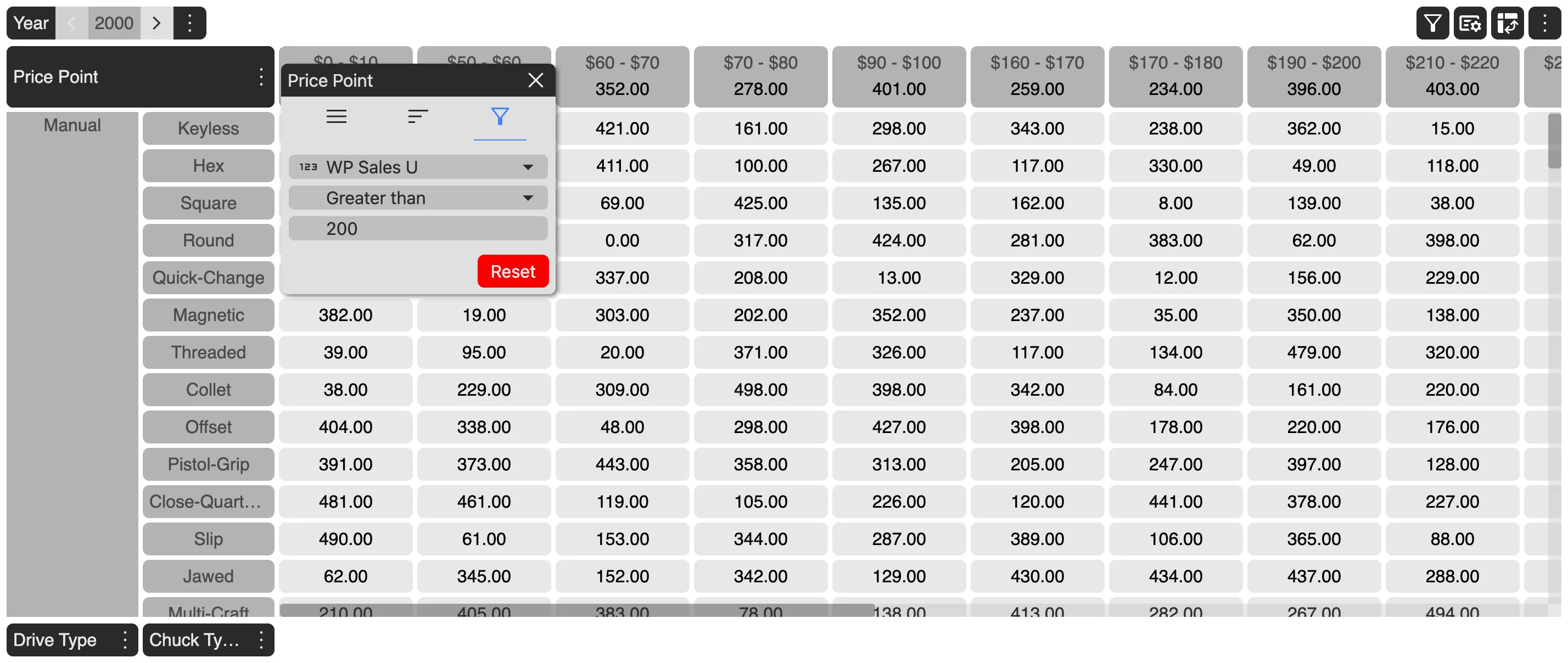
Filtering
This section describes the different ways that measure values can be filtered in the grid.
The user may chose to filter headers in a particular dimension or filter out the data grid based on the measure provided.
Headers in the dimension can be filtered using the context menu available in the dimension tab. Data grid can be filtered through the filter action available in the action header on top of the grid.
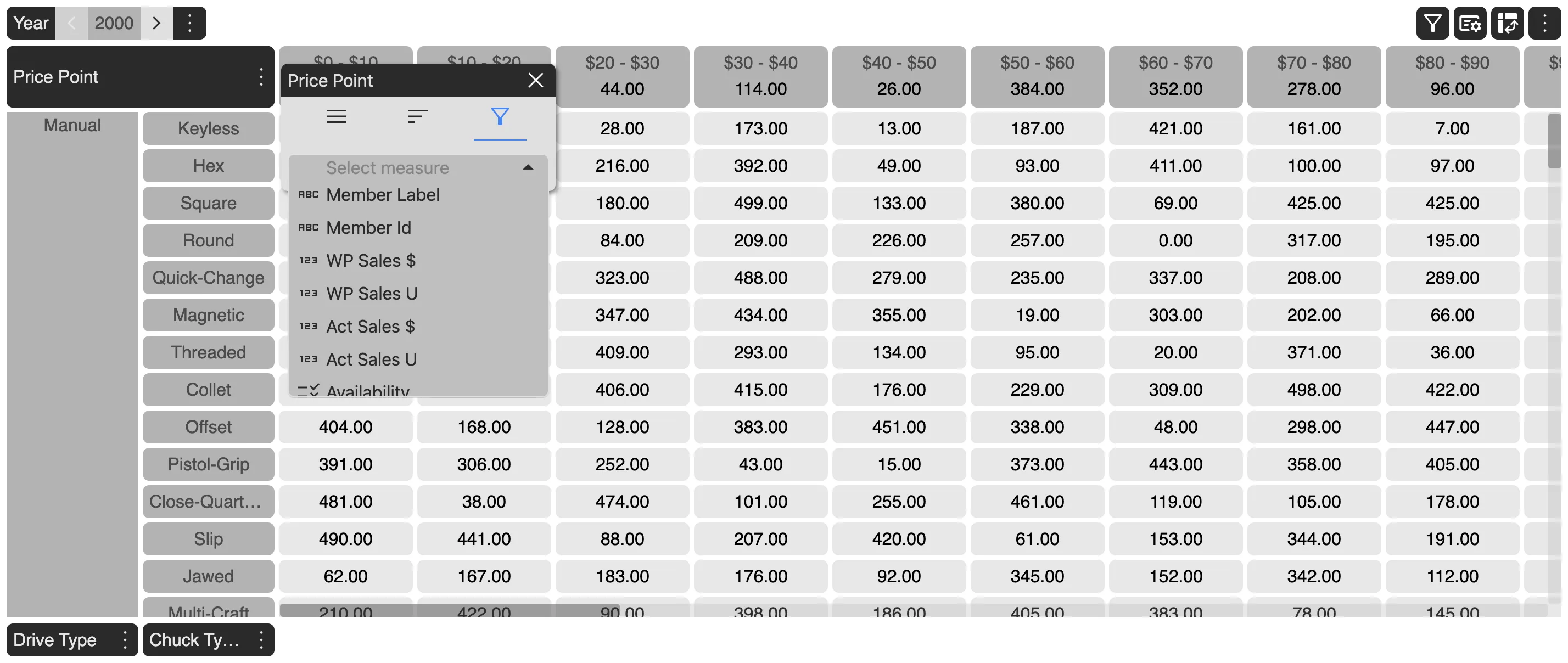
Based on the type of measure selected, cells could be filtered based on different set of filter conditions. List of all filter conditions based on the type are:
Number
- Equals
- Does Not Equal
- Greater than
- Greater than or equal to
- Less than
- Less than or equal to
- Between
String 1. Contains 2. Does not Contain 3. Equals 4. Does not Equal 5. Starts with 6. Ends with
Date 1. Equals 2. Does not Equal 3. Before 4. After 5. Between
Boolean 1. Is 2. Is Not
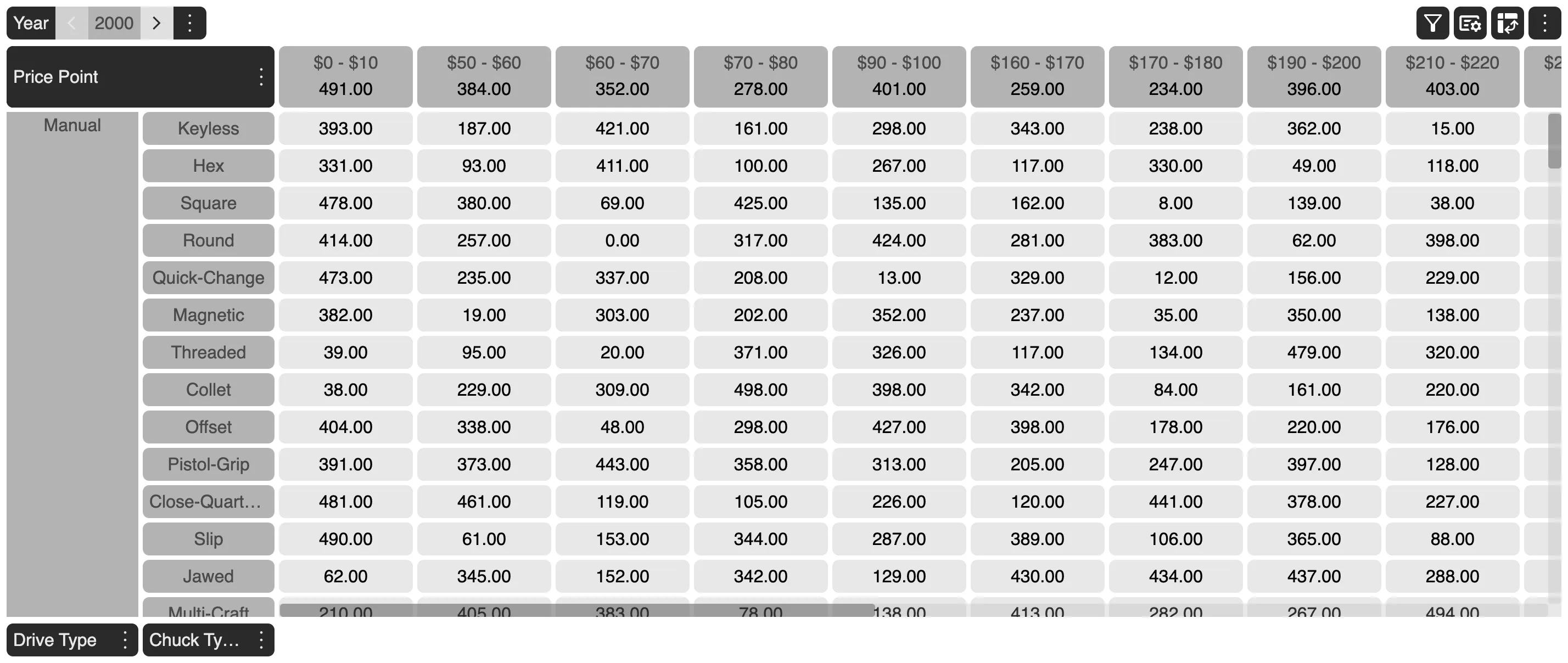
When a filter is applied on the dimension, data cells corresponding to the filtered header cells will automatically get removed. Also, when a filter is applied on the data grid, if all the cells of a particular row or column have no data in it, be it because of the result of cells being filtered out or because of no data in it, the entire row or column would be removed from the grid.
For example, applying filter on the data grid with measure WP Sales U, filter condition Greater than and filter value 200. The resultant grid would be as shown below:
Filter could also be removed or reset using the Reset button in the filter menu.